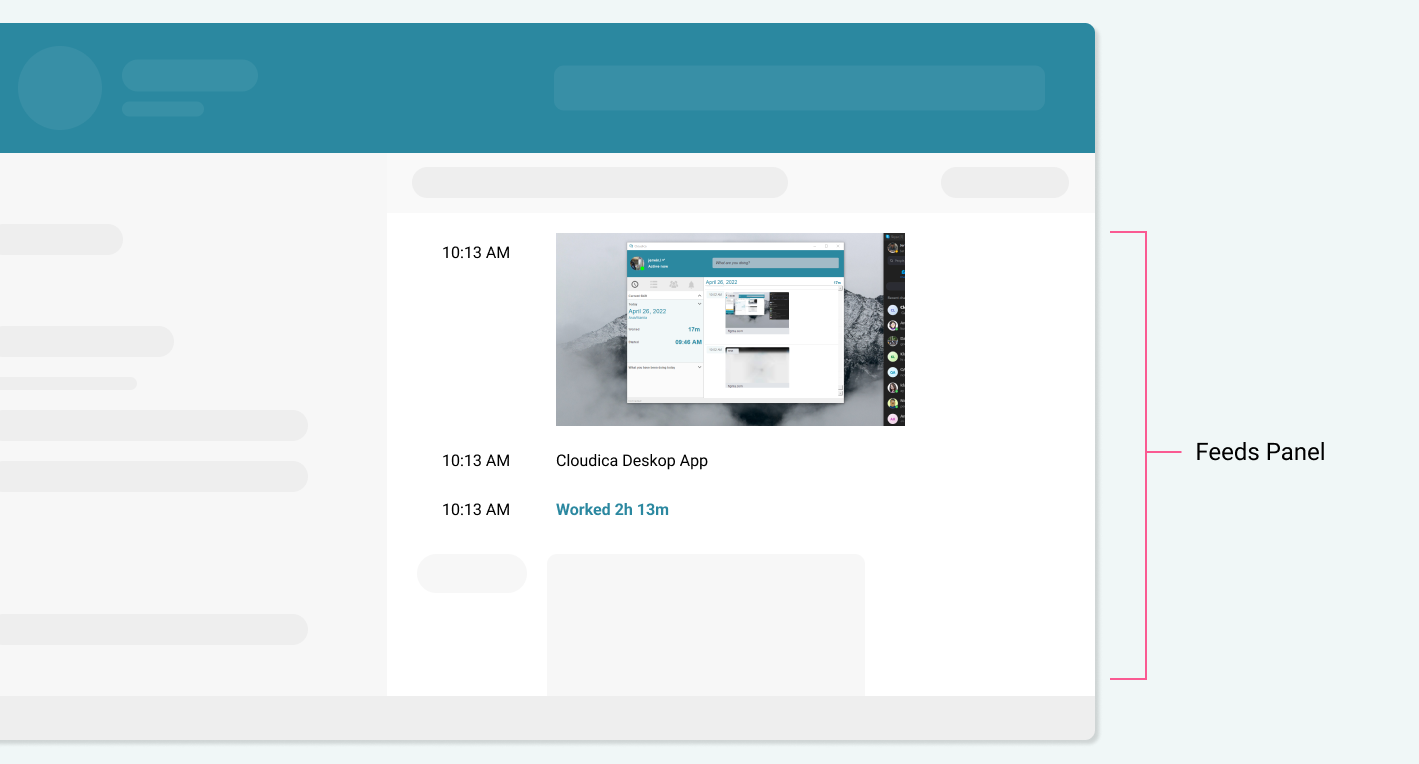
Download the app installer here.
And if you need help with the installation, read about it here.
Now, let’s proceed with the guide.
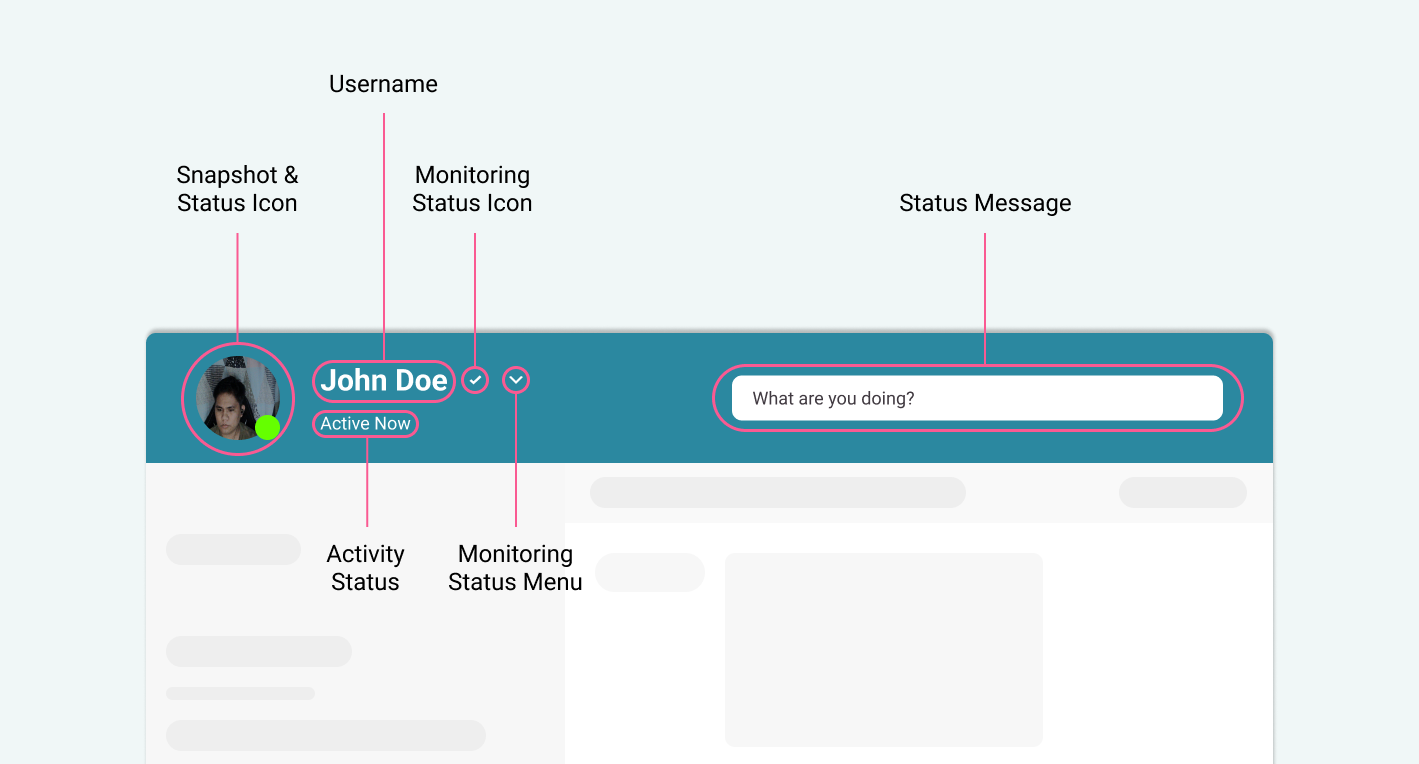
- The snapshot shows your latest or last snapshot taken by the app.
- The status icon dot indicates if you are online (green) or offline (white).
- Username displays who logged in.
- The activity status indicates if you have computer activity or have been idle. If you have no computer activity, it will show how long you have been idle.
- The monitoring status icon shows your monitoring status. A checkmark for Monitoring, shield for Confidential, and hat with eyeglasses for Incognito.
- The menu is used for changing your monitoring status or signing out or exiting the app.
- In the status message input, you can write your status or current activity.
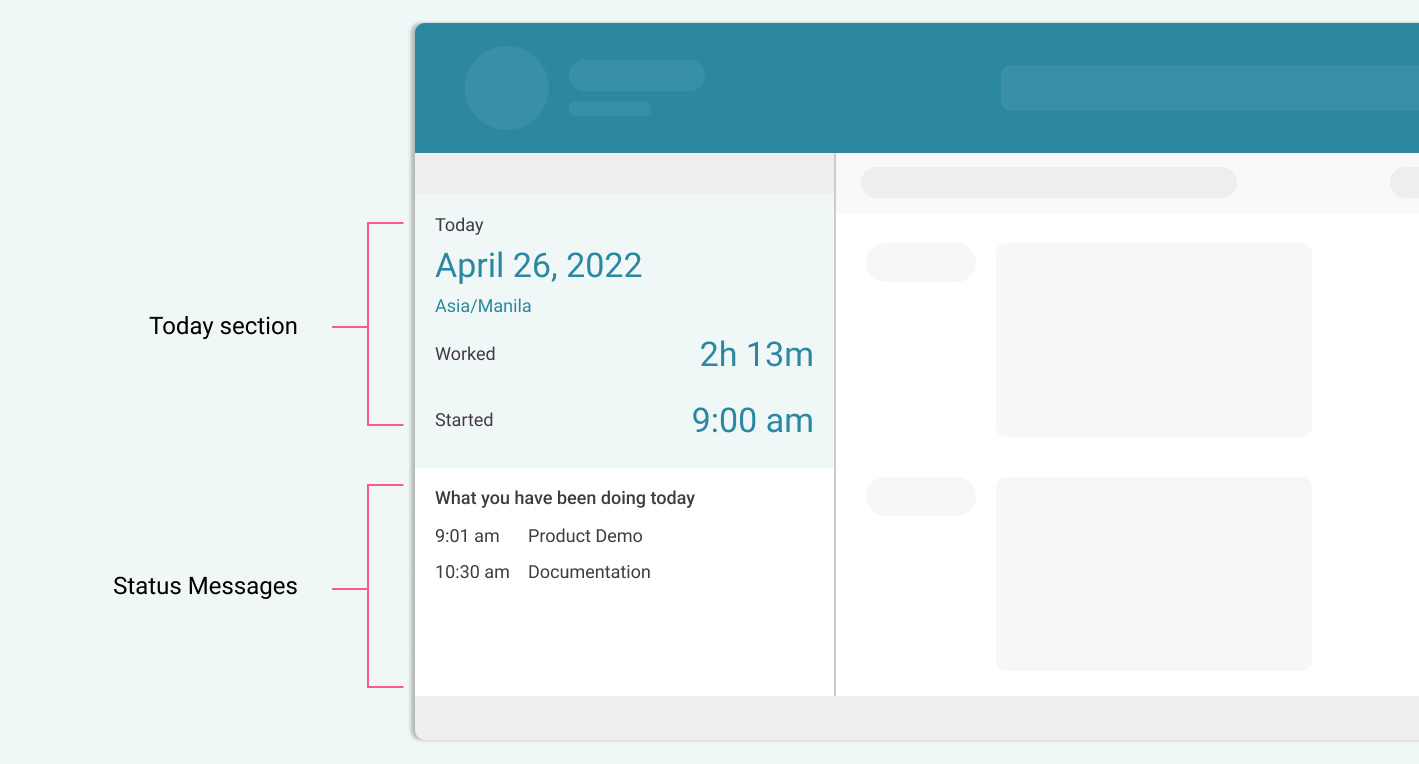
- Today section displays the current date, the company timezone, your worked time, and the time you logged in.
- Posted status messages shows the status messages you posted during your day. Here, you can edit or remove your status message.